
Recipe Costing With Supplier Prices
Recipe costing with supplier prices means each cost card uses what you really pay: upload your supplier's price list and FoodTechGuru matches every line to your ingredients. The case prices become prices per kilo, and the cost cards you make after that are priced from your supplier's list.
From price list to cost card

- Upload the price listCSV or Excel, up to 5 MB, from Settings › Prices of Ingredients. 50 credits.
- The AI matches every lineIt finds the columns, then pairs each product with one of your ingredients.
- Fix what it flagsA #10 can is a size, not a weight: set what it weighs, or match a line yourself.
- Cost your recipesNew cost cards are priced from your supplier's list.
From case price to price per kilo
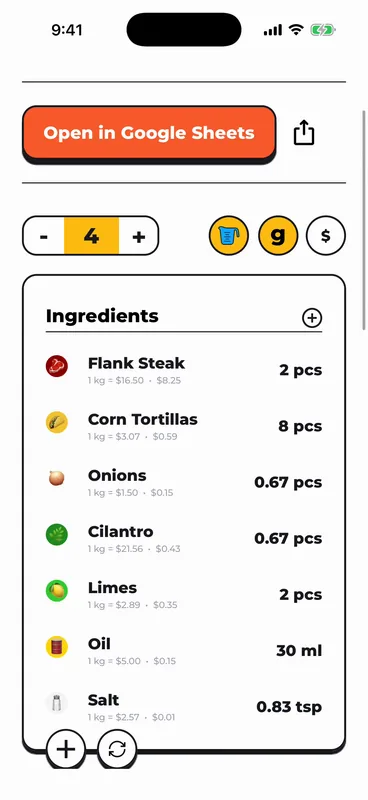
Suppliers sell by the case, the bag or the pound. A cost card needs a price per kilo. The app does that conversion for every line, so a 50 lb bag of onions at $33.95 becomes $1.50 a kilo on the card. From the tutorial run:
| On the supplier's list | In the app |
|---|---|
| Onions, Yellow, Jumbo · 50 lb bag · $33.95 | $1.50 per kg on the carne asada card |
| Cilantro · case of 60 bunches · $38.80 | $21.56 per kg on the same card |
| Beef Chuck Roll · $10.05 per lb | $22.16 per kg in the prices list |
| Ground Beef 81/19 · 4/10 LB case · $176.80 | $9.74 per kg in the prices list |
What your price list needs
- One row per product, with a description, a pack or size (like 4/10 LB or 1/48 CT), a unit and a price. Item numbers help but aren't required.
- CSV or Excel, up to 5 MB. The app reads the first sheet, and the AI works out which column is the description, the pack and the price, so there is no fixed layout to follow.
- One currency per list.
What it doesn't do (yet)
- No PDF, photo or invoice price lists. CSV or Excel only.
- Saved cards keep their prices. Cards you make after the upload use the list.
- No price history. It keeps the latest price from each list, without price alerts, so it isn't an ingredient price tracker. When prices change, upload the new list.
Comparing two suppliers first? The free vendor price comparison calculator does it per pound or per kilo, item by item.
Guru plan · free trial included
Your supplier's prices on every new card
Snap, type or paste a recipe as usual. FoodTechGuru builds the cost card with prep and cooking loss and a Google Sheet, and the ingredients matched to your list are priced from your supplier.
- Up to 4 suppliers on the Guru plan
- 50 credits per price list, refunded if the upload fails
- iPhone today, Android coming

Recipe costing with supplier prices FAQ
Which price list files work?
CSV and Excel files (.xlsx, and older .xls) up to 5 MB. The app reads the first sheet. PDF, photo and invoice price lists are not supported.
What does an upload cost?
50 credits per price list, also when you upload a new version of a list. If the upload fails, the credits are returned.
Which plan do I need?
Supplier price lists are a Guru plan feature, and the Guru free trial includes them. Guru takes up to 4 suppliers.
Do my existing cost cards change?
No. Cost cards you make after the upload use your supplier's prices; cards you already made keep theirs.
Is it an ingredient price tracker?
Not yet. It keeps the latest price from each list you upload, with no price history or price alerts. When prices change, upload the new list.
What if a line doesn't match?
The app lists it as a problem item. You can set its pack size, for example the weight of a #10 can, or match it to one of your ingredients yourself.
More on the cost card itself: recipe costing software, or try the free recipe cost calculator. Ordering from your list? Start from the free restaurant order guide template.
Cost recipes at the prices you pay
Upload your supplier's list once. Every new card uses it.
Get FoodTechGuru on iPhone